
LAUNCHING THE GAME SCREENS
Gamebox Quickstart Campaign
When developing the idea for Gamebox there was one thing we wanted to ensure we kept simple, this was the ability to launch into play as quickly and simply as possible. To do this we’ve added 2 features, 1) The Quickstart campaign that automatically creates a new campaign and adds demo content, or all of your available assets from your assets library if you have something available. And 2) the ability to launch any pre-built campaign directly from the campaign card in your dashboard, making the return to campaigns quick and simple.
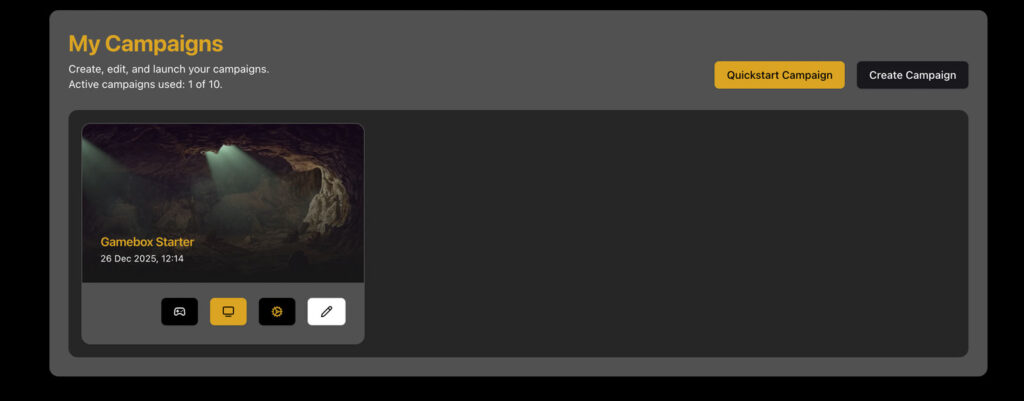
Once you’ve signed in, simply click the Quickstart button in the dashboard to generate the Campaign. Now, within seconds of signing up we we can launch right into gameplay and test things out.
The 2 buttons to look for launch the “Controller” screen and the “Viewer” screen. Both screens can be launched from the same account, theres no need for a “Viewer” or “Player” account. one to display on your computer and one on your TV or Projector.
The screens are synchronised, both controlled from the “Controller” screen.
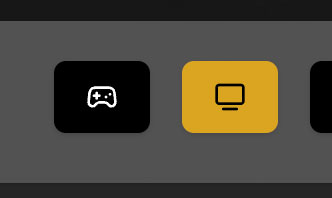
The button with the Remote Control icon will launch the “Controller screen”. This screen will open in a new TAB, this screen becomes the Game Masters RPG Campaign Dashboard.
The button with the Monitor icon is the “Viewer Screen”, this screen will open in a new TAB which should be moved to the TV tabletop or Projector.
TIP: If you run a second computer for your Tabletop, you can login to the same account on both computers to open the “Controller” on one computer and the “Viewer” on another, they will still be synchronised through the logged in account.
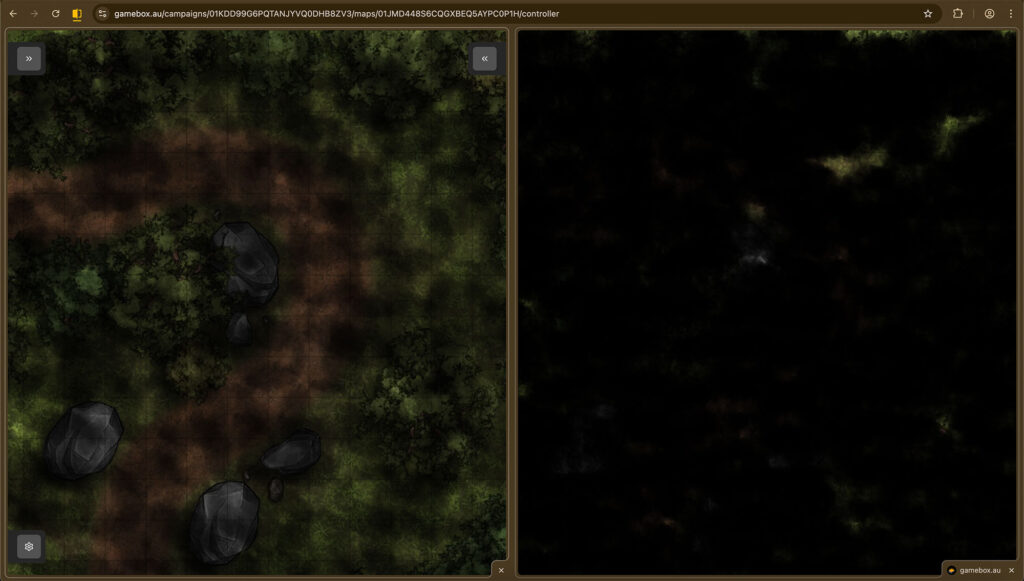
When the “Viewer” screen loads, you will need to set the TAB to full screen via your browser settings, this provides a frameless and immersive experience for your players.
Both screens load with the “Fog Of War” active, the “Viewer” screen has opaque Fog to hide the map and not giving anything away. The “Controller” screen has semi transparent Fog so the Game Master can see the map and manage assets underneath.
You are now in game mode
Using Maps and Assets
On the “Controller” screen you will have 2 menus, right and left of screen. The left menu manages Maps, Spells, Effects, Props and Fog. The right menu manages Audio, Music and Sound Effects. This menu will also control “Environmental Effects”, planned features not yet released, so watch this space!
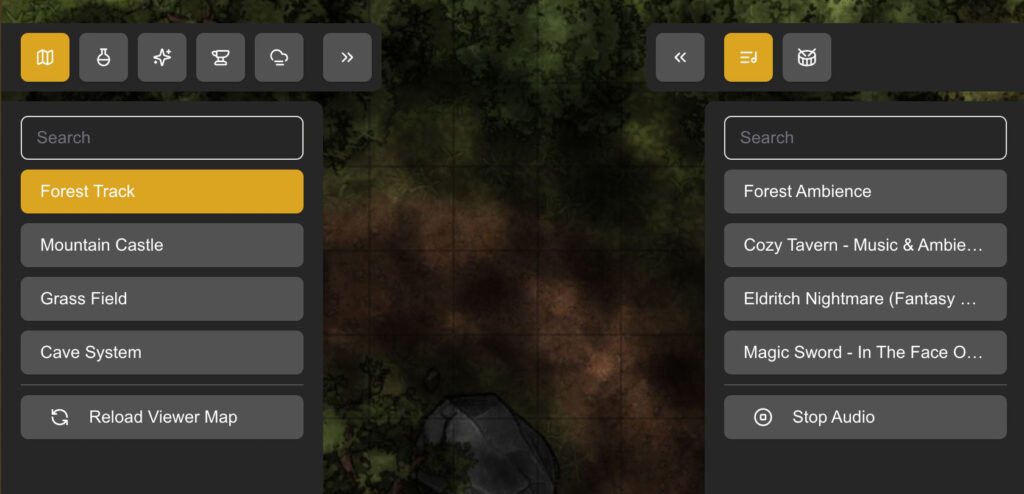
To open the menus, hover over the arrow icons, the menus will slide out from the side, hover off the icons and they will auto close. Selecting a menu item will activate the menu and keep it open until the the menu is deactivated allowing it to close again.
From here you have the ability to manage all aspects of your game.
Next STEPS
For more information on each aspect of Gamebox take a look through our other Tutorials
